# Experiencing
Claude.ai on iPhone 13: A Complete Installation Guide
If you’re an iPhone 13 user curious about artificial intelligence and looking to explore one of the most advanced AI assistants available today, [
Claude.ai](
http://Claude.ai) is an excellent choice. This powerful AI tool from Anthropic has made its way to mobile devices, bringing sophisticated conversational AI capabilities right to your pocket. In this comprehensive guide, I’ll walk you through everything you need to know about installing and experiencing [
Claude.ai](
http://Claude.ai) on your iPhone 13.
Before diving into the installation process, let’s briefly understand what [
Claude.ai](
http://Claude.ai) offers. Claude is an AI assistant designed to help with a wide range of tasks including writing, analysis, coding, math problem solving, and general conversation. It’s known for its thoughtful responses, ability to engage in nuanced discussions, and helpful nature across various topics. Whether you need help drafting an email, understanding complex concepts, or just having an engaging conversation, Claude can assist you.
## Getting Started with Your iPhone 13
Your iPhone 13 is perfectly equipped to run the Claude mobile app. With its powerful A15 Bionic chip and vibrant Super Retina XDR display, you’ll have an excellent experience interacting with Claude. The app is optimized for iOS devices and runs smoothly on the iPhone 13’s hardware.
## Step by Step Installation Process
Installing [
Claude.ai](
http://Claude.ai) on your iPhone 13 is straightforward and takes just a few minutes. Here’s how to get started.
Step One: Open the App Store
Begin by locating and tapping the App Store icon on your iPhone 13’s home screen. The App Store is your gateway to downloading all official iOS applications. The blue icon with a white stylized letter A is typically found on your main home screen.
Step Two: Search for Claude
Once the App Store opens, tap the search icon located at the bottom of your screen. In the search bar at the top, type “Claude” or “Claude AI” to find the official application. You’ll see several results appear as you type.
Step Three: Identify the Official App
Look for the official Claude app from Anthropic. The app icon typically features Claude’s distinctive branding. Make sure you’re downloading the authentic app by checking that the developer name is listed as Anthropic. This ensures you’re getting the genuine application and not an imitation.
Step Four: Download the App
Tap the “Get” button next to the Claude app listing. If you’ve downloaded the app before and deleted it, you might see a cloud download icon instead. Your iPhone 13 may prompt you to authenticate the download using Face ID, Touch ID, or your Apple ID password. Follow the authentication prompt to proceed.
Step Five: Wait for Installation
The app will begin downloading to your iPhone 13. Depending on your internet connection speed, this should take anywhere from a few seconds to a couple of minutes. You can watch the progress as the app icon appears on your home screen with a loading circle showing the download progress.
Step Six: Launch Claude
Once the installation completes, tap “Open” in the App Store, or find the Claude app icon on your home screen and tap it to launch the application for the first time.
## Setting Up Your Account
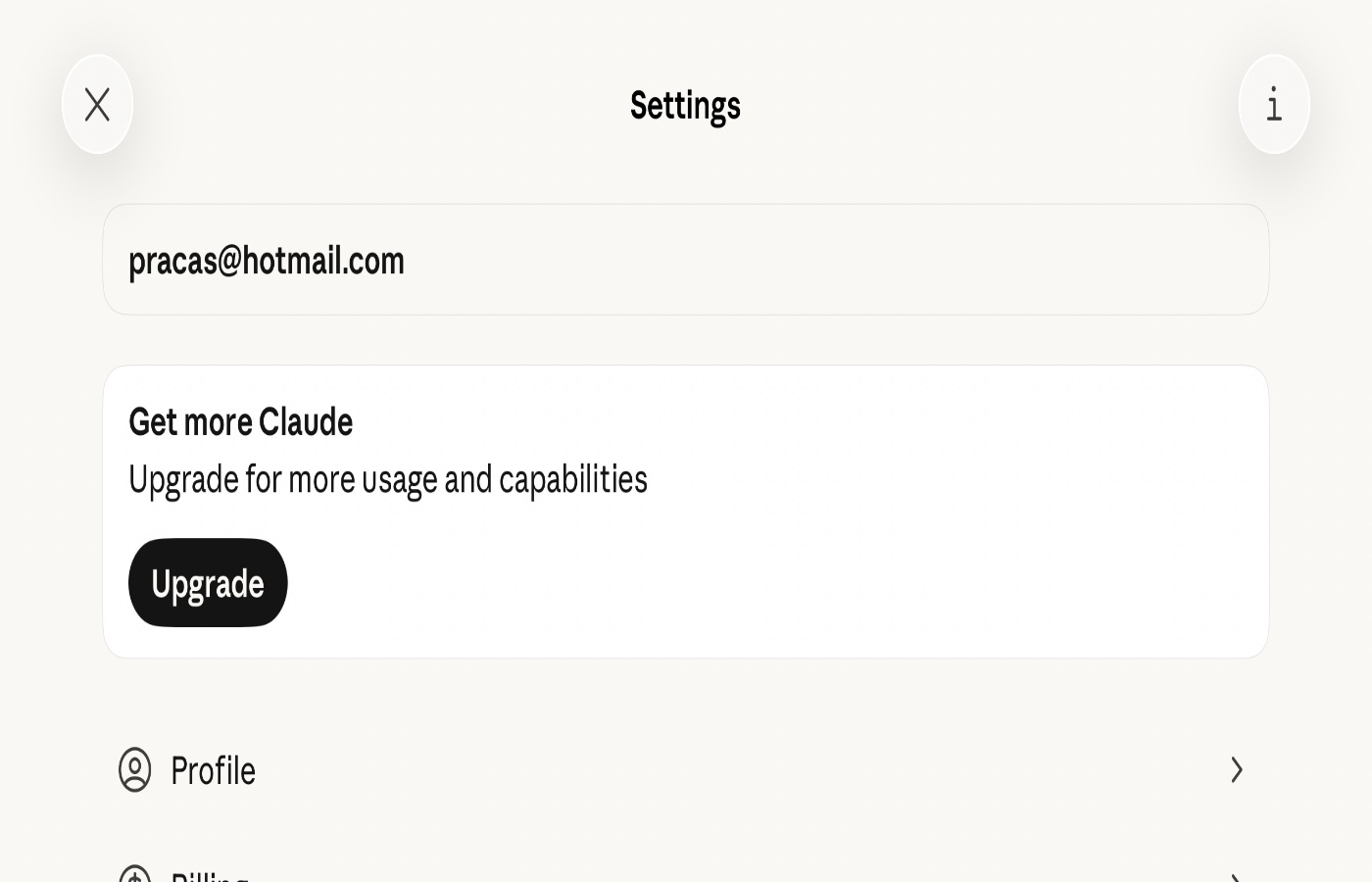
After opening Claude for the first time, you’ll need to set up your account to start using the service.
Creating Your Account
You’ll be presented with options to sign up or log in. If you’re new to Claude, tap the sign up option. You can create an account using your email address or by connecting through other authentication methods that may be available. Enter your email address and create a secure password.
Verifying Your Email
After entering your details, Claude will send a verification email to the address you provided. Open your email app on your iPhone 13, find the verification email from Claude, and tap the verification link. This confirms your email address and activates your account.
Completing Your Profile
You may be asked to provide some additional information or agree to terms of service. Read through the terms and privacy policy, then proceed to complete your profile setup.
## Exploring the Interface
Once you’re logged in, take a moment to familiarize yourself with the Claude interface on your iPhone 13. The app features a clean, intuitive design that makes it easy to start conversations with Claude.
The main screen displays a text input field where you can type your questions or prompts. Above this, you’ll see your conversation history. The interface is designed to feel natural and conversational, similar to messaging apps you already use.
## Starting Your First Conversation
Now comes the exciting part – actually using Claude. Tap the text input field at the bottom of the screen and type your first message or question. You can ask Claude about virtually anything, from helping with homework to explaining complex topics, writing assistance, or just having an interesting conversation.
Tap the send button, and Claude will process your message and respond thoughtfully. The AI typically responds within seconds, providing detailed and helpful answers.
## Tips for the Best Experience
To get the most out of Claude on your iPhone 13, keep your app updated by enabling automatic updates in your App Store settings. This ensures you always have the latest features and improvements.
Make sure you have a stable internet connection, as Claude requires connectivity to function. WiFi provides the best experience, but cellular data works well too.
## Conclusion
Installing [
Claude.ai](
http://Claude.ai) on your iPhone 13 is a simple process that opens up a world of AI assistance right at your fingertips. From the straightforward App Store download to setting up your account and starting your first conversation, everything is designed to be user friendly and accessible. Once installed, you’ll have a powerful AI assistant ready to help with countless tasks whenever you need it.






![[object Object] icon](/images/kasinHomepage/facebook.svg)
![[object Object] icon](/images/kasinHomepage/twitter.svg)
![[object Object] icon](/images/kasinHomepage/youtube.svg)
![[object Object] icon](/images/kasinHomepage/instagram.svg)